Setting Up a Replacement Login for Your (Facebook or LinkedIn) OHCC Training Account
These instructions are only for providers who used Facebook or LinkedIn logins in the past.
What You Need To Know
- Facebook and LinkedIn logins for the OHCC PACE platform are no longer available.
- Bottom line, if you've used one of those options for login, you need a new/placement login to access your records and continue training!
Background
- On July 7, 2025, we removed Facebook and LinkedIn login options because of technical issues. We understand not all providers were able to setup a replacement login before that time.
- If you are a returning provider used Facebook or LinkedIn as your login and have not yet created a replacement login, these instructions are for you!
Follow the three easy steps below to create a new login -- to restore access and link your new account to your existing training records!
INSTRUCTIONS: Set Up Your New Replacement Login and Connect Your Existing Training Records
- From the OHCC training login page (should be already open in another one of your browser tabs - or click here), select a new login method (Google or Microsoft*).
* Microsoft login options include Outlook.com and Hotmail.com.
- Log in - and then continue until you reach the About You | Email Addresses prompt (as shown below). The email address associated with your new login will automatically show at the top - below that, enter the email address associated with your previous/existing OSU PACE login account (the one you used for the Facebook or LinkedIn login). If the new account email address (the first one listed, which displays automatically) is the same as the one you used for your Facebook (or LinkedIn) login-based account, there is no need to enter it again below.
Click the terms of service agreement, and then click Continue. After this, you will be prompted for a security code sent to the new login account email address* .
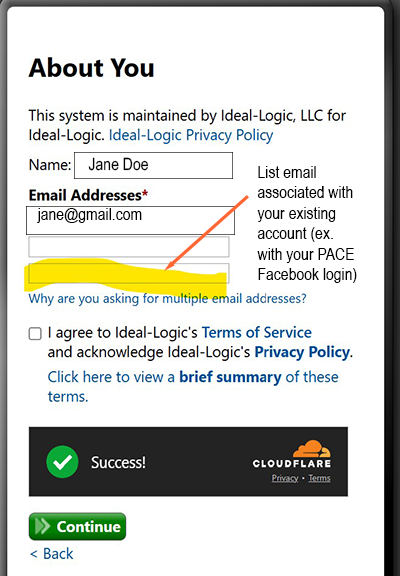
If the names associated with your new and previous login account differ, you may see an additional step(s) asking you to confirm that your new and previous account "are the same person," as well as your preferred name for the new account.
- Finally - once you complete this setup and access your learning dashboard (with the new login), you should see your current/past training and records. After this, you will continue to access training with your new login account.